Quick answer: A slow PACS is almost never just one thing. The usual suspects are the network path between the reading station and the image server (including VPN, Wi-Fi, or hotspot links), name resolution (DNS), the workstation itself, the PACS or VNA server and storage, and workflow settings like prefetch and hanging protocols. To fix it, first find out where the delay happens: opening the worklist, loading images, scrolling through a stack, or launching dictation. Then test one layer at a time.
Step 1: Describe the slowness precisely
Before changing anything, write down exactly what “slow” means. Ask:
- What is slow? Worklist loading, opening a study, scrolling, comparing priors, or saving or sending a report?
- Who is affected? One radiologist, one site, or everyone?
- Where are they? In the hospital, at an imaging center, or reading from home over VPN?
- When? All day, or only at certain hours, such as during backups or the morning rush?
- What kind of studies? Large datasets like mammography (especially tomosynthesis), CT, and MR stress a system far more than plain X-rays.
These answers usually point you toward the right layer right away. If only one remote reader is slow, start with their connection. If everyone is slow at 7 a.m., look at the server and storage.
Step 2: Check the network path
Medical images are large, so the network is the most common bottleneck, especially for home and remote reading.
- Test from the reading location, not the server room. A connection that looks fine inside the data center can be poor at the far end.
- Look at latency and packet loss, not only bandwidth. A fast internet plan with high latency or dropped packets can still feel sluggish when loading a stack.
- Watch out for Wi-Fi, mobile hotspots, and VPN tunnels. These add delay and variability. If a radiologist reads over a hotspot, the viewer’s compression and streaming settings matter a lot.
- Check the route. Is traffic hairpinning through a distant data center or a congested VPN concentrator?
Step 3: Don’t overlook DNS
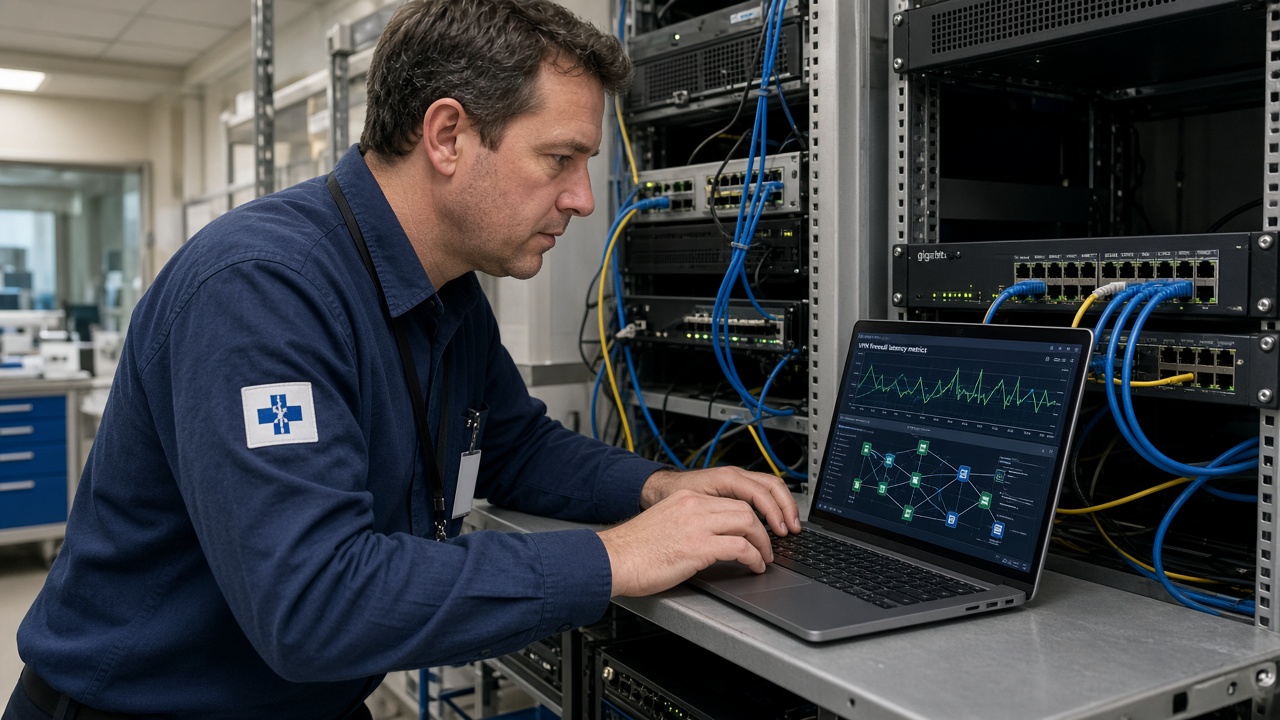
DNS (the service that turns server names into IP addresses) is an underrated cause of PACS delays. If a workstation tries a DNS server that doesn’t answer before falling back to one that does, every connection can stall for a few seconds. That shows up as “PACS is slow,” even though the PACS is fine.
Signs it might be DNS:
- The first click is slow, but things speed up once the study is open.
- Connecting by IP address is faster than connecting by hostname.
- The problem started after a network, VPN, or domain change.
Step 4: Check the workstation
- Hardware: Diagnostic viewers need enough memory, a capable graphics card, and fast local storage for caching.
- Drivers and updates: Outdated graphics drivers or a pending operating system update can make a viewer stutter.
- Background software: Security scans, sync tools, and other apps can compete for resources.
- Local cache: A full or misconfigured image cache forces the viewer to pull everything from the server again.
Step 5: Check the server, storage, and archive
If many users are slow at the same time, look at the back end:
- Server load on the PACS application, database, and web or streaming servers.
- Storage tiers: Are priors coming from fast online storage, or being recalled from slower archive storage or a VNA every time?
- Scheduled jobs: Backups, migrations, database maintenance, or reindexing during reading hours.
- Interfaces: A backed-up HL7 or DICOM queue can make studies look “missing” or late even when image loading is fast.
Step 6: Review workflow settings
Sometimes the system works exactly as configured, but the configuration doesn’t match how radiologists read.
- Prefetch rules: Are relevant priors moved to fast storage before the radiologist opens the case?
- Hanging protocols: Heavy protocols that load many series at once can slow first-image display.
- Worklist filters: Very broad worklists can take longer to build and refresh.
- Integrations: Delays in launching dictation (for example, PowerScribe) or the EHR from PACS can feel like PACS slowness.
A real example
Sometimes the cause isn’t where anyone expects. Here is how one radiologist described working with Sacred Heart Imaging Solutions (testimonial published on our Our Story page):
“Cesar’s high level of technical expertise in Medical IT was instrumental in supporting our radiology services. While assisting Dr. Chan, SHIS pinpointed a DNS issue causing delays, and Cesar quickly identified the root cause. He went above and beyond by developing a custom Python application to perform network and security checks. His swift action and deep understanding of the system also allowed him to identify and resolve the slowness Dr. Chan experienced while reading mammograms over a hotspot on a train. Cesar’s dedication and skill significantly improved our workflow efficiency.”
Dr Chan, Radiologist
When to bring in a PACS analyst
Call for specialized help when:
- Slowness keeps coming back after quick fixes.
- Your PACS vendor, network team, and desktop support each say “it’s not on our side.”
- You’re planning a migration, upgrade, or new remote reading setup and want to get performance right from the start.
Sacred Heart Imaging Solutions brings over two decades of healthcare IT experience to technical support and troubleshooting, workflow optimization, integration with RIS and EHR systems, and vendor coordination. We can act as the go-between for your radiologists, IT team, and vendors until the root cause is found and fixed.
If the problem turns out to be general office IT, such as network equipment, computers, or Wi-Fi at a medical practice, we partner with A. Computer Doctor for IT and network support.
Frequently asked questions
Why is PACS slow only when I read from home?
Home reading adds your internet connection, home Wi-Fi, and usually a VPN to the path. High latency, packet loss, or slow DNS on any of those can slow image loading even if your internet speed test looks good.
Can DNS really make PACS slow?
Yes. If a workstation waits on a DNS server that doesn’t respond before trying another, each new connection can stall. Fixing the DNS settings can make a big difference without touching the PACS itself.
Why do prior studies take longer to open than new ones?
Priors may be stored on slower archive storage or in a VNA and recalled on demand. Good prefetch rules move relevant priors to fast storage before the radiologist needs them.
Is it the PACS or the network?
Test from the affected location and compare. If one user or site is slow while others are fine, suspect the network or workstation. If everyone is slow at once, look at the server, storage, or scheduled jobs.
Get help with a slow PACS
Tired of waiting on images? Sacred Heart Imaging Solutions can help you find the real cause.
- Call: 951-595-7758
- Email: [email protected]
- Contact form: sacredheartimagingsolutions.com/contact-us
- Hours: Monday to Friday, 8:00 AM to 5:00 PM (Pacific)